Wouldn’t it be great if you could send a text message to a group of people by simply sending an email?
You can! First you need the people’s cell phone numbers and the carrier they use. I obtained this by simply sending an email to our staff and requesting it.
Just open up your Exchange Management Console, go to “Recipient Configuration” and then “Mail Contact” section. Either right click the “Mail Contact” area and select “New Mail Contact” or select it at the right side of the console. Then for each person you want to add type their name as you like it to appear in the GAL and in the SMTP area add the phone number plus the carrier text code. Those can be found here : http://en.wikipedia.org/wiki/List_of_SMS_gateways. After creating the Mail Contact, I went to properties and added (SMS) to the end of the name in the General tab.
Once you have created your SMS Mail Contacts, you can then go to Distribution Group, right click and select “New Distribution Group” and give it a name that is easy to identify and remember. Then right click your newly created Distribution Group, select Properties, go to the “Members” tab and add the new contacts you created previously.
That’s it! You should now be able to send a text message to everyone you included in the Distribution Group.
Remember to remove your email signature and any other characters you do not want to include in your text message. Text messages are limited to 160 characters.
Also you may want to send the email as a BCC to prevent others from seeing the text numbers of the group.
Email to SMS with Exchange 2007
2 04 2013Comments : 1 Comment »
Categories : General, HR, Microsoft Exchange
Uh oh! Our server storage is full! What now?
6 12 2011Yesterday we reached maximum capacity on our file server. We have overcome the issue by removing some dated files and folders. this comes at a a time when there is a hard drive shortage due to the floods in Thailand! I am recommending a NAS device but it will be interesting if we can get ANYTHING with a hard drive due to the shortages.
Since there were some legitimate questions about the server disk issue, I wanted to take the time to educate you all on the difference between workstation / laptop disk storage and server disk storage.
PLEASE read this entire blog! I have tried to make it in layman’s terms and address a lot of points of frustration due to misunderstandings.
Server disks are different than most workstation drives in that
- They are designed to operate at performance speed. Most workstation SATA drives are 5.4k or 7.2k rotation speeds. Our server SAS drives operate at 15k rotation.
- Server drives have hardware and software that work in unison called RAID or RAID Array. Ours are set at RAID Level 5 which combines 5 drives into a single drive and each server has a hot spare which takes over in the event of a hard drive failure at a slightly reduced functionality but users would never lose data or even know that this has occurred. Our contract with Service Express covers a failed hard drive and without question they come out and replace the failed drive. At that point, the hot spare begins to move its data back to the good drive and is then ready for the next failure, if and when that occurs. We have had at least 4 occurrences of failed drives without data lose or even the knowledge of anyone on staff.
- Server hard drives are built for durability. A regular desktop hard drive would not be able to sustain itself from the constant read and write activity that occurs on a server. The failure rate would be much greater and if we did not have them in a RAID array the loss would be total in most cases.
My recommendation to overcome the disk space issue.
Get a NAS (Network Attached Storage) device that utilizes SATA drives (instead of the more expensive SAS drives) BUT that will allow me to set a RAID Array to protect us from failure and hence data loss. There are specific recommended SATA drives by NAS manufacturer that are better than the average SATA drives, but not as expensive as the SAS drives normally used for a server.
So, you may be asking the question “Why not just add a couple of drives or replace the drives in the existing server?”
Glad you asked!
- Standardization: I would like to maintain as much standardization between servers as possible.
- Time: Either option would mean having to take the entire network down and rebuild the server and restore the data back to it.
- Cost: SAS drives are expensive!
- Bang for the buck: Even if we replaced the existing 6 drives with 8, we still would not be able to get anywhere near the storage capacity a NAS would provide
Now, you are probably going to ask “Why can’t we use cloud storage instead of using our server storage?”.
- This would cause increasing speed issues with our internet connection.
- The speed of accessing and editing larger files would be a problem
- The ability to set rights on files.
- Backup and retention of data. (Especially in the case where everyone is coming up with their own solutions for cloud storage)
a. Users may totally lose or delete a file they didn’t mean to or the file may become corrupt. Without a backup, they would not be able to recover it / them.
b. If we are paying staff to create files and documents, we need a centralized place with access control to maintain that data. We would not want a situation where a staff or volunteer leaves and their data goes with them.
c. Security. Our data should be our data.
Cloud storage is probably going to be the answer ultimately. However, I do not believe we are there yet and our network is really not where it needs to be in order to support it.
That is why I have recommended the solution of a NAS storage device. It is more expensive than some solutions but it is the best fit for where we are now.

Once we have addressed our infrastructure issues (wiring, switches, staff internet, wireless internet access for staff and public access), we will then be ready to investigate utilizing cloud based storage.
I believe there will be many caveats to cloud based storage, but let’s make sure we prioritize properly and make wise decisions based on real facts.
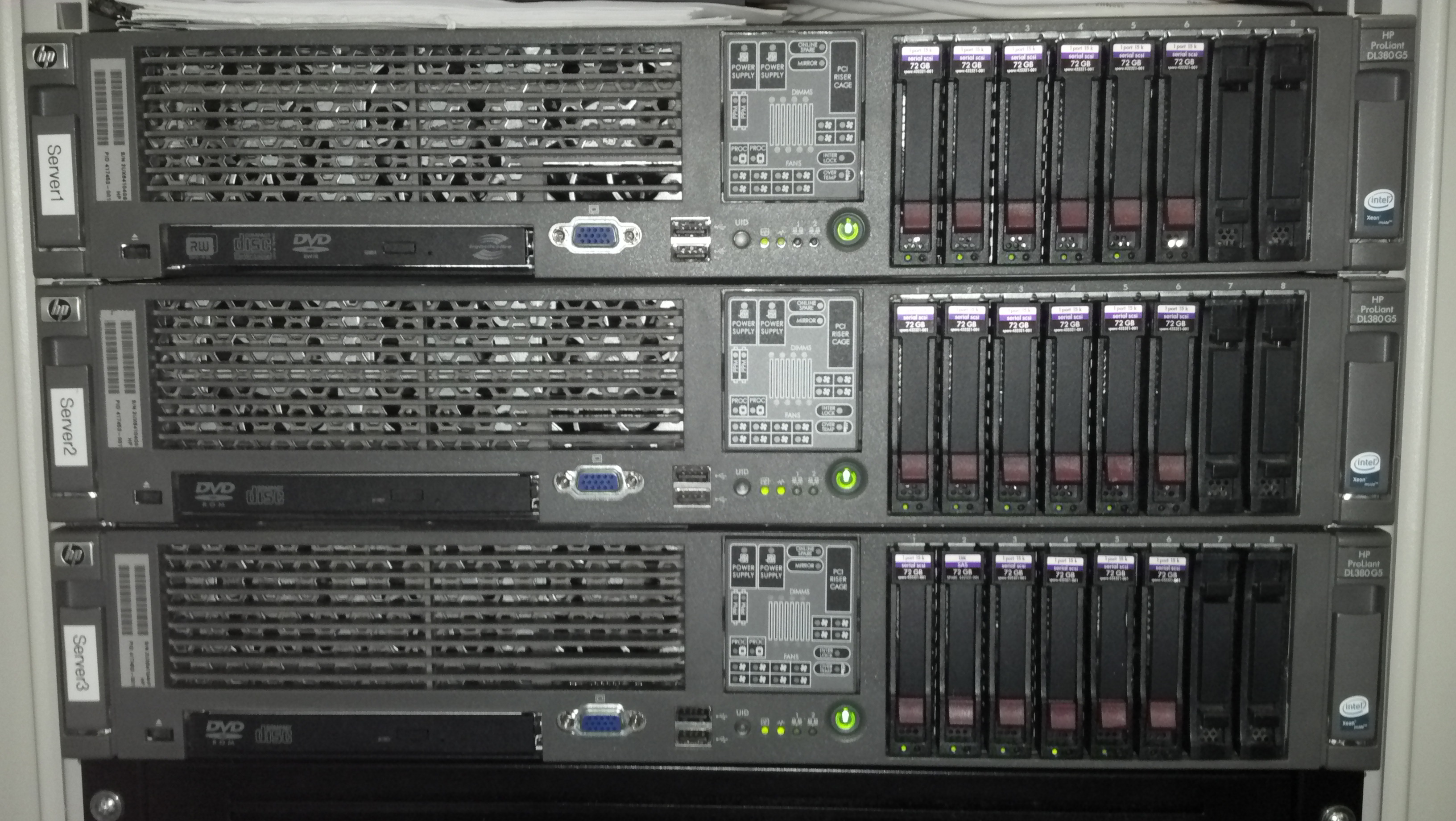
Above are the 3 Christ Church Nashville servers. Each have 5 72GB 15k SAS drives and each has a hot spare.
Comments : Leave a Comment »
Tags: disk space, hard drive, qnap, sas, sata, server
Categories : Backups, General
IT Room cooling on a budget
6 10 2011UPDATED – See updated “professional” version below!
My office houses all of the IT equipment for the church. With all of the servers, switches, routers, firewalls, tape drives, etc. running, it gets very hot thru the night and when I open my office door in the morning the temperature is probably around 90 to 95 degrees.
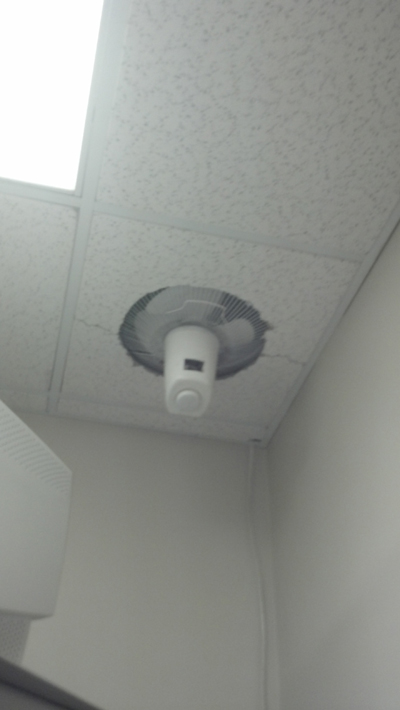 Heat is not good for computer equipment. It causes solder points to expand and contract, resulting in ultimate failure. I can only imagine how hot the equipment is getting where it generates heat the most.
This article is obviously not very technical in nature. I didn’t measure the heat of my office or use an instrument to determine the temperature of CPU on the servers. (this could be done thru the server management console, of course). There are some very pricey and technical methods of heat extraction. This solution worked for me. It’s not very pretty but now that we know that it works we can find a better looking solution in the future. Unfortunately I broke the ceiling tile while trying to cut the circle in it. That doesn’t help the aesthetic issue much!
John 9:25 is a great example of not over analyzing things that just work.
John 9:25 He answered and said, Whether he be a sinner or no, I know not: one thing I know, that, whereas I was blind, now I see.
So make fun of my solution if you will, but one thing I know: it once was hot but now its not! lol!
UPDATE! 2/18/2012
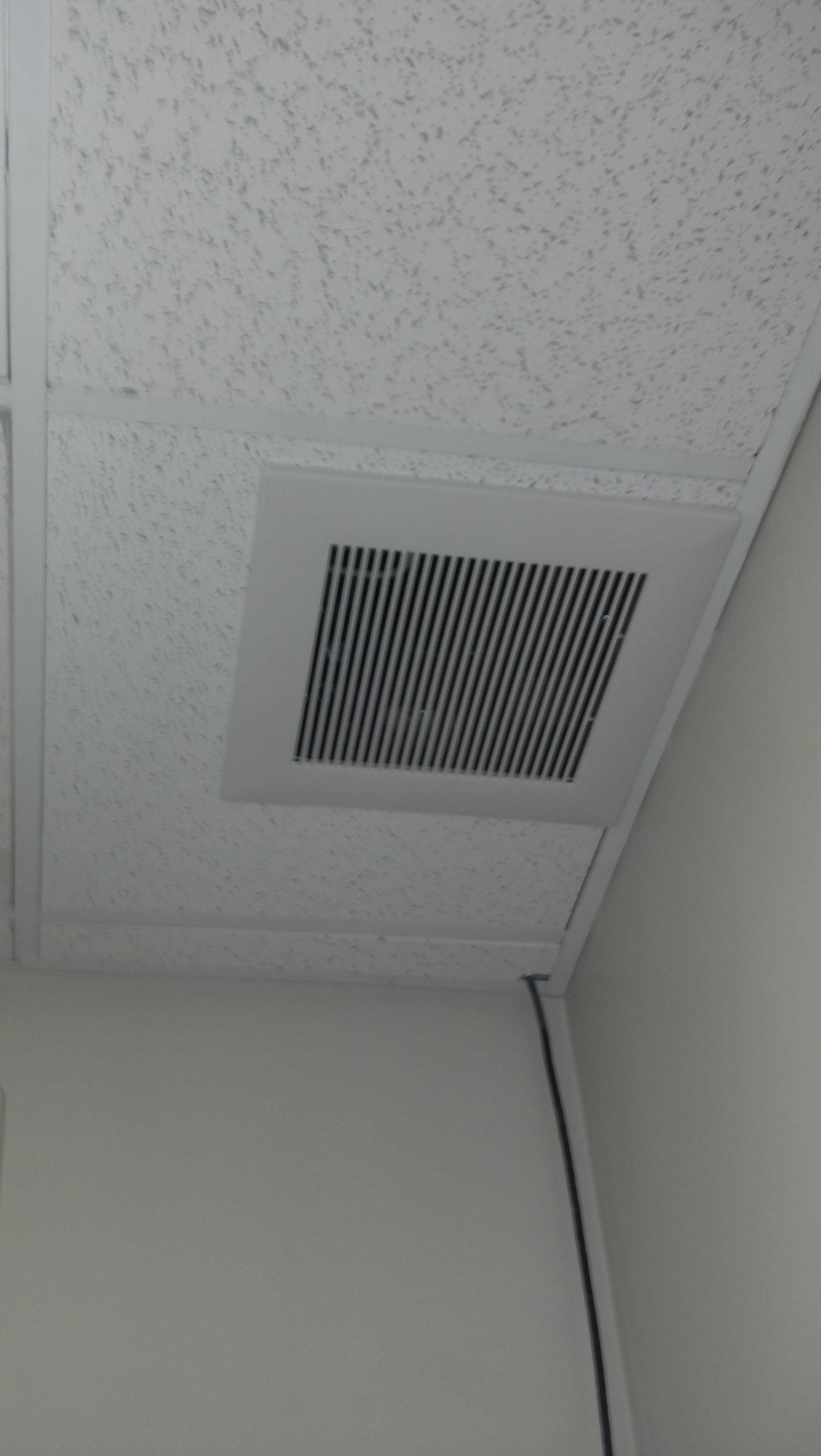
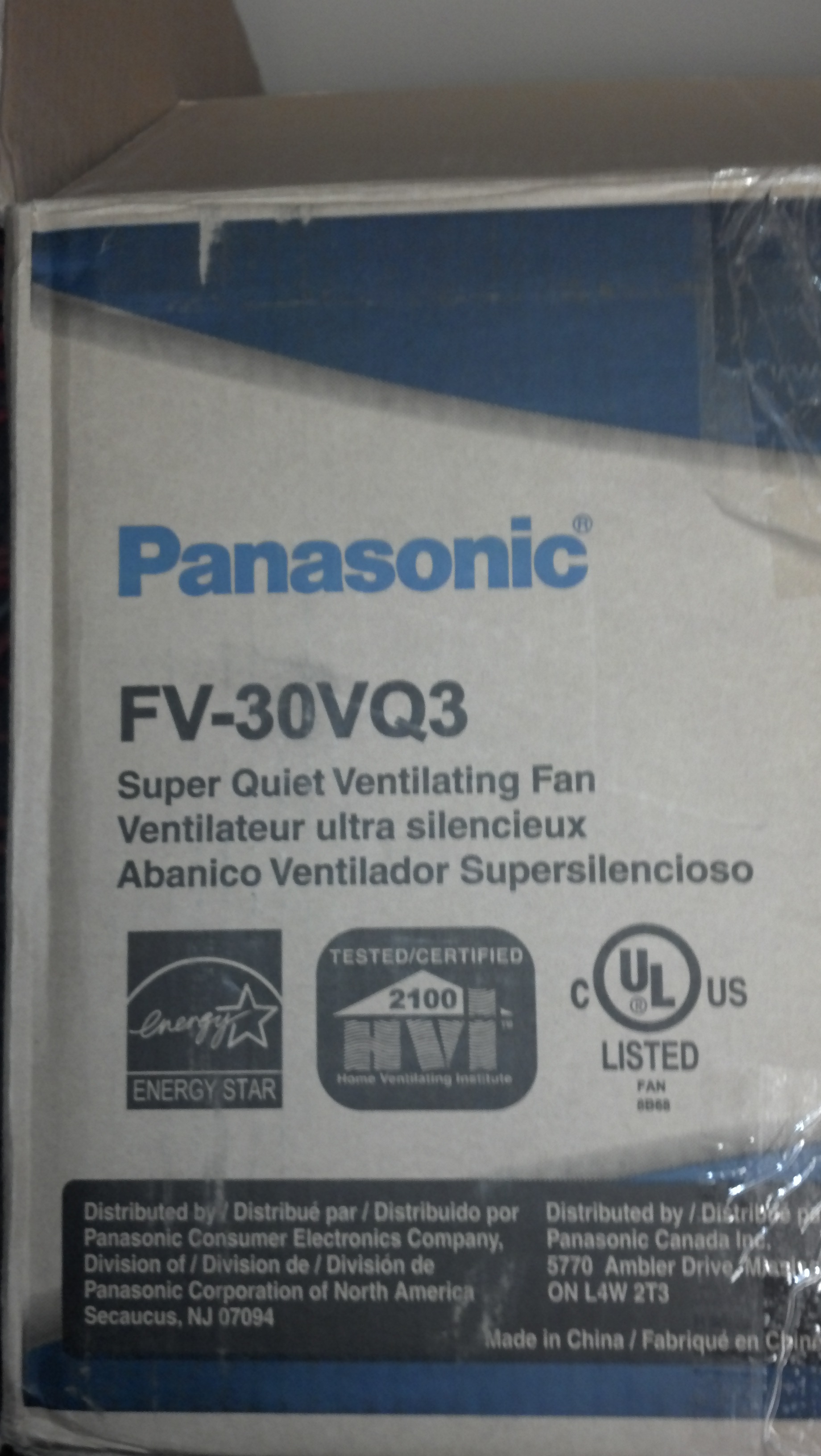
The fan in my redneck setup quit working. The basic principal worked so I found a professional fan at a bargain store and I had it (uh hum) professionally installed by our resident maintenance man and our resident electrician. Just kidding about the (uh hum) guys. Ernie and Jerry did a fabulous job! Thanks to them our IT room is staying cooler than ever.

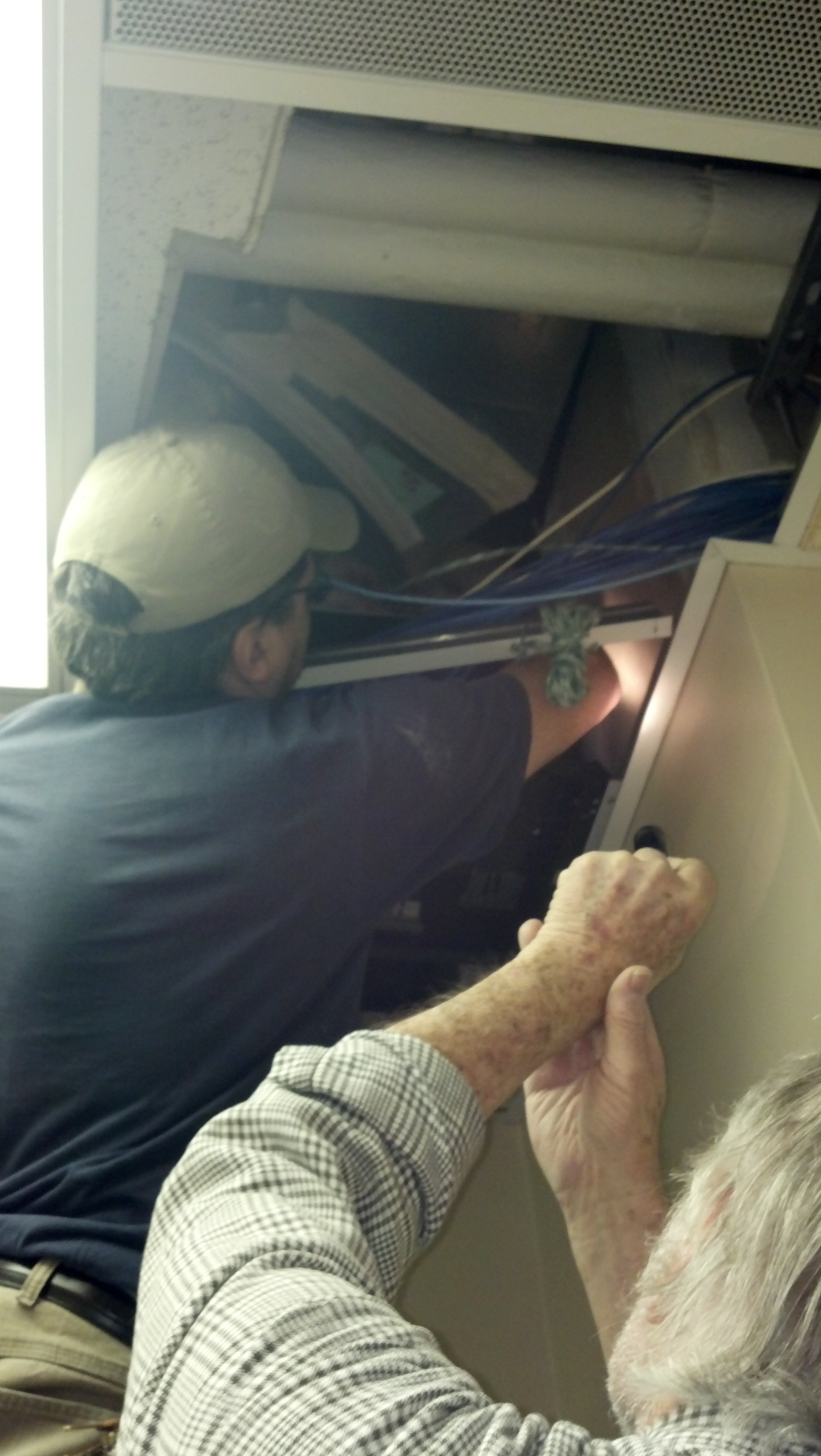
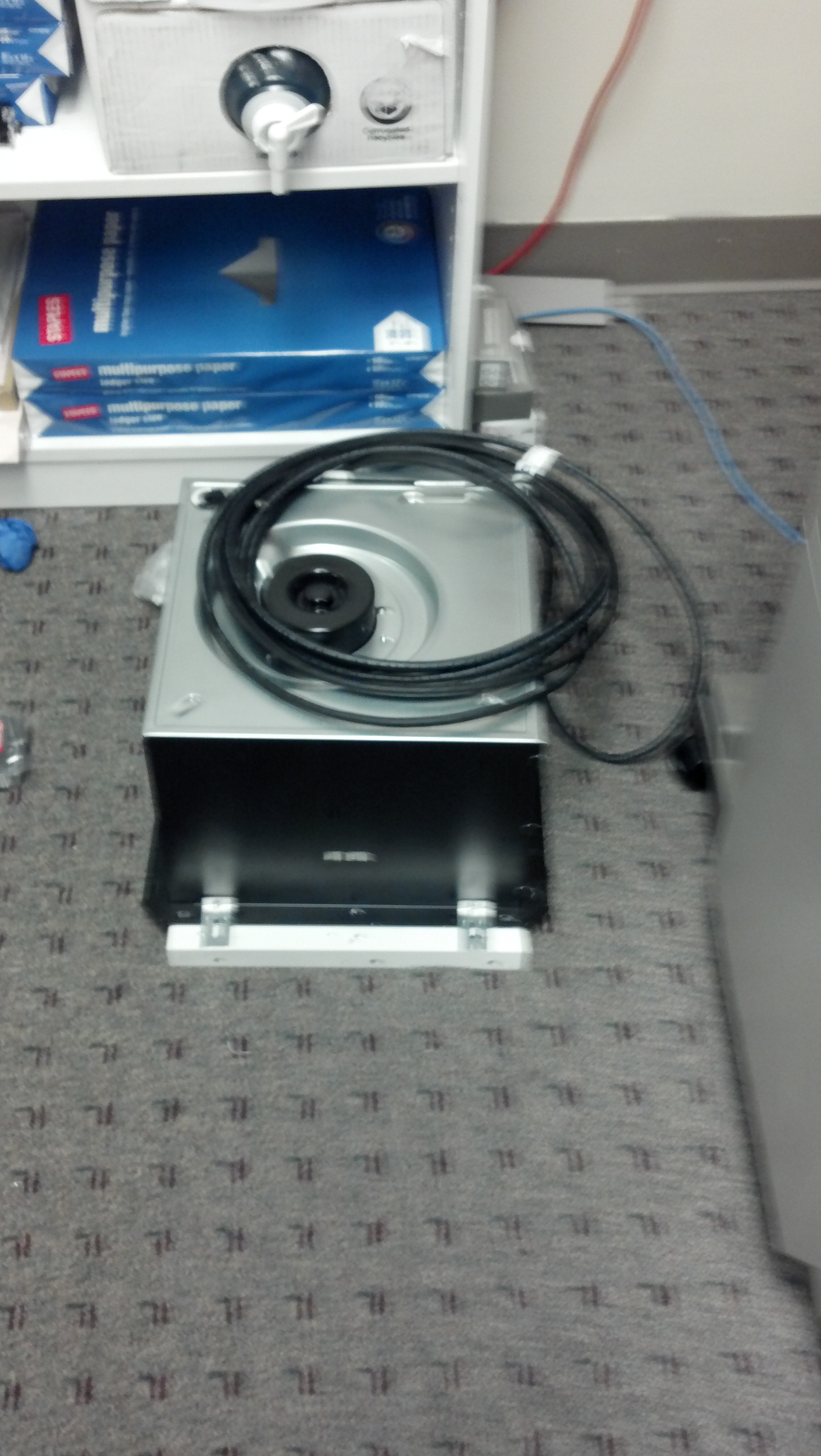

Comments : Leave a Comment »
Categories : General
QR Codes
28 04 2010Lets face it, church’s spend a lot of money on printed publications. Recently our Congregational Care Team met with the Communications Team (of which I am a part of the latter) to discuss Visitor Packets. These are packets that will potentially contain a welcome message from our Pastor, History of our church, the ministries we have, schedule of services, class schedule, confession of faith and possibly a cd or dvd in a pocket or sleeve incorporated into the packet. We also discussed the possibility of content changing. Especially specific people over current ministries. I brought up the possibility of using inserts for each ministry so that changes to a single ministry does not cause the entire Visitor Packet to become obsolete and reprinting an insert is much cheaper. Also, the ministries would be able to use the inserts as stand alone pamplets at their events.
The one idea I had was to use QR codes placed above the physical pamplet. A QR code is a box of a bunch of different sized squares. When you scan the code with your cell phone bar code scanner, it performs an action. In our instance, we are looking to send people to a digital copy of a visitor packet. After a little research I found a site where it is possible to generate QR Codes.
http://www.racoindustries.com/barcodegenerator/2d/qr-code.aspx
The concept is to get people who like and want to use technology to scan the code and not take a packet. They would still get the same information or maybe even a more up to date version, but digitally. I don’t know how well accepted this concept will be but there is very little cost involved.
The steps would be to first create the online Visitor Packet, then create the QR code, print it and put it above the physical copy of the Visitor Packet. Also, we could put them in our bulletins and other printed media.
One other idea would be to put the QR codes on the ministry inserts themselves and have that link to their ministry portion of the website.
This may be putting the cart before the horse, because we still do not have a web phone friendly interface. (note to self: start creating a web phone freindly interface for our website)
Still, its fun to look back at these things to see how far we have come.
Hope you all find this helpful!
Scott
Comments : 2 Comments »
Categories : General
A New Beginning
24 03 2010So it has begun!
The world of church IT is ever evolving and growing so fast that it is hard to keep up sometimes. Every day I come across new challenges and ideas here at my full time job at Christ Church Nashville. It only makes sense to record my thoughts and findings so that not only do I have a place to come back and reference them, but it is an opportunity to share what I have learned with other church people headed down the path I have already traveled.
Comments : Leave a Comment »
Categories : General
 Church Related Information Technology Blog